How to Get Your Google Review Link: A Step by Step Guide
Your Google review link is a short web address that takes customers straight to the review form on your Google Business Profile. Sharing it removes the guesswork for customers, and it is one of the simplest ways to get more Google reviews. Here is exactly how to find it, how to get your free QR code and how to make the most of both.
Go to your Business Profile on Google, select Read reviews, then Get more reviews, and copy the link. Google shows a QR code on the same screen, which you can save and print. The whole thing takes less than a minute.
What is a Google review link?
A Google review link is a unique URL for your business. When a customer opens it, Google takes them directly to the “write a review” form for your Business Profile, with the star rating ready to choose. They do not need to search for your business, find your listing or work out where the review button is.
That matters, because every extra step loses people. A customer who is happy to leave a review will often give up if they have to hunt for the right page. A direct link turns “I will do it later” into a review posted in under a minute.
How to find your Google review link
You can get your link from Google in a few clicks. Make sure you are signed in to the Google account that owns or manages your Business Profile, then follow these steps.
Open your Business Profile
Search for your business name on Google, or search “my business”, while signed in to your manager account.
Select Read reviews
In the Business Profile tools shown above your listing, choose Read reviews.
Select Get more reviews
Choose Get more reviews. A panel opens showing your review link and QR code.
Copy your link
Select Copy and paste your link wherever you want customers to see it.
Service area business? The steps are exactly the same if your profile does not show an address, such as a mobile hairdresser, plumber or cleaner. Your review link works in just the same way.
How to get your Google review QR code
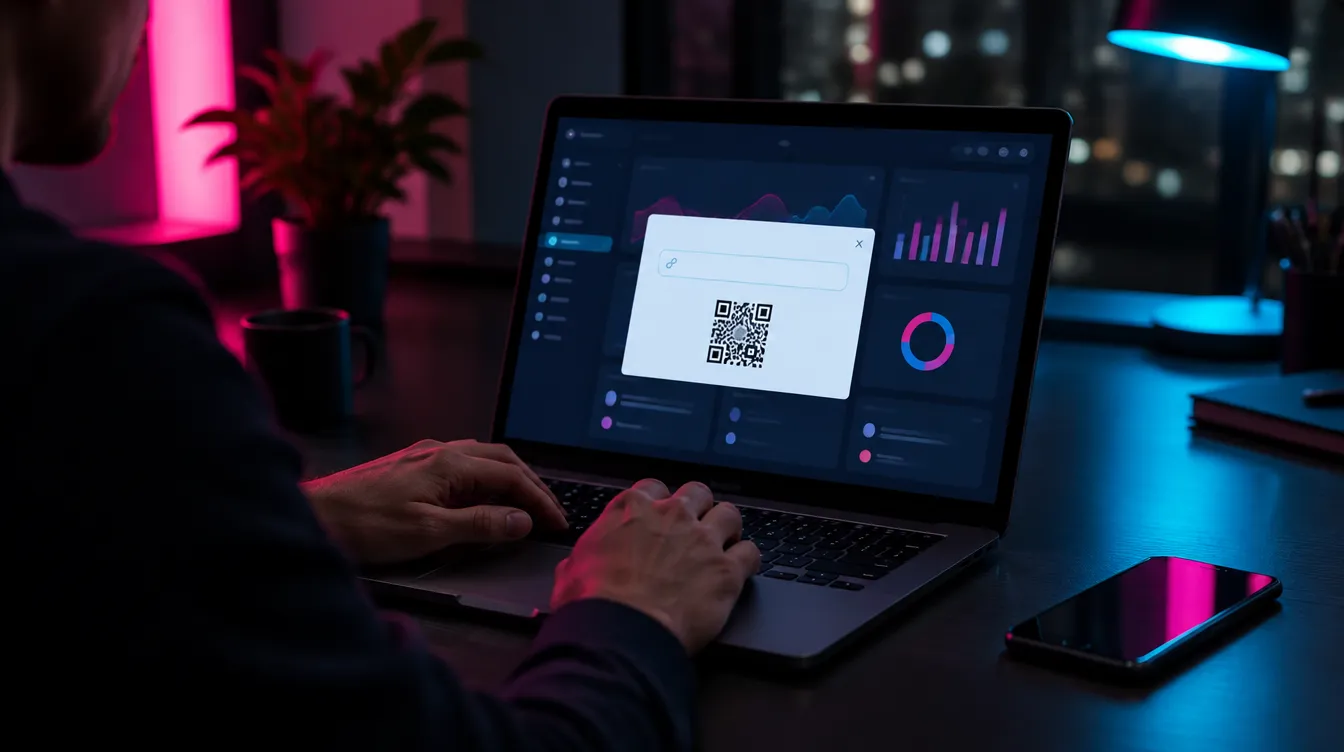
The same Get more reviews panel also shows a QR code that opens your review form when scanned with a phone camera. Google notes that review QR codes can currently only be generated in a computer browser, not on a mobile device.
- Open the Get more reviews panel on a computer, following the steps above.
- Right-click the QR code and select Save image as.
- Add the saved image to receipts, posters, table cards, flyers or invoices.
Where to share your Google review link
Google itself suggests including your link or QR code on receipts, in thank you emails, at the end of chat conversations and on printed signs in store. Here are the places that tend to work best.
Receipts and invoices
Add the link or QR code to every receipt and invoice so every customer sees it.
Thank you emails
A short thank you after a purchase or appointment is a natural place to include it.
Texts and WhatsApp
Ideal for trades and appointment based businesses that already message customers.
End of a chat
If you support customers by live chat, add the link once their question is resolved.
In store
Print the QR code on a counter sign, table card or poster where people wait or pay.
On a review card
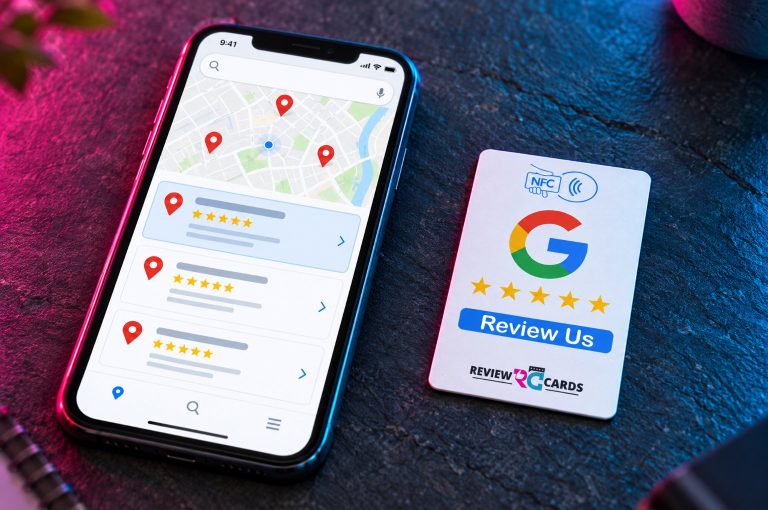
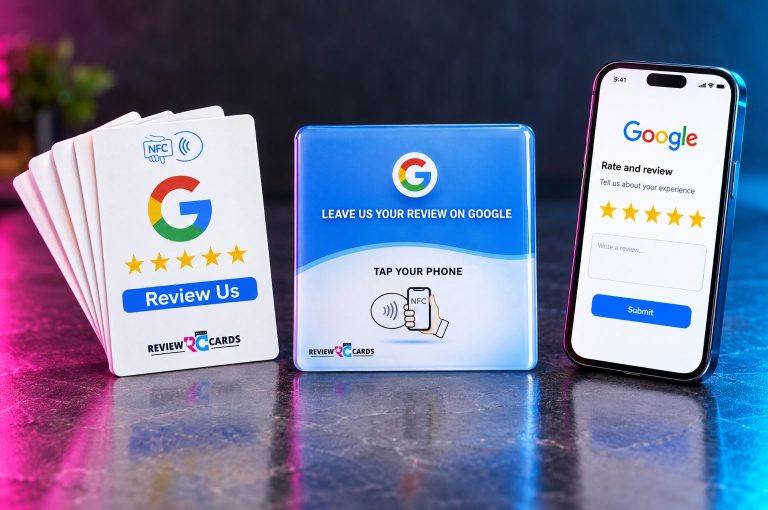
Put your link on an NFC card or plaque so customers can simply tap their phone.
Make it even easier with an NFC review card
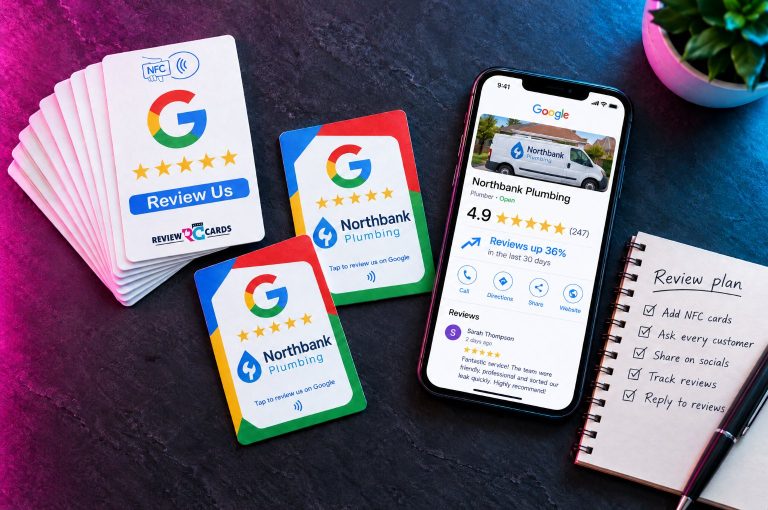
A link is great for messages and a QR code is great for print, but both still take a few steps. An NFC Google review card stores your review link on a contactless chip, so customers just tap their phone on the card and the review form opens. We programme your link onto the card for you before it is posted.
| Review link | QR code | NFC review card | |
|---|---|---|---|
| How customers use it | Click the link in a message | Open the camera, scan, tap the link | Tap their phone on the card |
| Best for | Emails, texts and follow-ups | Receipts, signs and flyers | Counters, tables and handing to customers |
| Cost | Free | Free | From £14.99, one-off |
Most businesses get the best results by using all three: the link in messages, the QR code on print and a card or plaque at the counter.
Sharing your review link the right way
Google encourages businesses to ask for reviews, but it is strict about how. Its content policy also flags unusual volumes or patterns of reviews as a sign of rating manipulation, so a steady, consistent approach is far better than a sudden burst.
Do
- Share your link with every customer after a genuine experience
- Ask consistently over time, as part of your normal routine
- Keep your wording neutral, asking for honest feedback
- Reply to the reviews you receive, positive and negative
Do not
- Offer discounts, freebies or prizes in return for a review
- Only send your link to customers you know are happy
- Email your entire contact list at once, creating an unusual spike
- Ask for five stars or for specific wording
- Ask staff, friends or family to review your business
For more on the rules, read our plain English guide to Google’s review policy.
Troubleshooting and FAQs
I cannot see the Get more reviews option. Why?
Check that you are signed in to the Google account that owns or manages the Business Profile, and that the profile is verified. The option only appears to people who manage the profile.
Why does my link ask customers to sign in?
Google requires reviewers to be signed in to a Google account. Customers without one can create a free account with any email address. Our guide on leaving a Google review without a Google account explains how.
Do I need a link shortener?
No. The link Google gives you is already short and easy to share, so there is no need for a third party tool.
Can I get the QR code on my phone?
Google currently only generates review QR codes in a computer browser. You can still copy your review link from a phone.
Can I put my review link on an NFC card?
Yes. Send it to us when you order, or just give us your business name and address, and we will programme your cards so customers can tap to review.
Is it allowed to share my review link?
Yes. Google actively encourages businesses to share a review link or QR code. Just share it with everyone, never offer incentives and never ask only happy customers.
In summary
Your Google review link is free, takes less than a minute to find and makes it far easier for customers to review you. Copy it, save your QR code, share both everywhere customers already interact with you, and consider a tap to review card for your counter. Keep asking every customer, consistently and fairly, and your reviews will grow steadily.

Google Review NFC Cards
We programme your Google review link onto the card, so customers just tap their phone to leave a review. Pay once and collect unlimited reviews.
- From £14.99
- No monthly fees
- Free worldwide shipping
- 100% money back guarantee